These steps are performed outside 360Learning by whoever manages your organization's developer accounts.
What are the customization options
360Learning provides a customized mobile application. It’s a native app on both iOS and Android. Each customized app is a new app altogether, which maintains the same quality level (frequent updates, bug fixes, etc.) as the standard 360Learning mobile app.
Assets needed
To create a customized app, we require the following graphic assets:
- App name
- App icon
- App icon background color
- Android notification icon (if applicable)
- Brand logo for the splash screen and login screen
- Splash screen and login screen background color
- Brand color
- Store description
- Android short description (if applicable)
- Apple Store tagline (if applicable)
- Privacy policy URL
These requirements may change as Google and/or Apple update their guidelines.
To ensure your applications remain compliant with the latest store policies, we may need to request additional information from you in the future.
Continue reading for detailed information on what is needed for each asset.
App name
Specifications
- Should be below 12 characters to allow full display.
- The app name must be unique on the App Store. For each country’s App Store where the app will be deployed, check that the app name is not already in use.
App icon
Specifications
- SVG format (mandatory)
- Should have a transparent background
- Should have a square aspect ratio
- Should not add extra text to the app icon (avoid any caption. If the logo is/contains text it is accepted.)
- Specify which background color to use from the palette
App icon background color
This is used by the device's system to add visual effects, like shadows, smooth scrolling, and liquid glass.
The color is set to white by default, but you can customize it to fit your brand.
Android notification icon (if applicable)
When showing notifications, we need to display a small, monochrome version of the logo of the app.
Please note that this logo is small. We will need a simpler version.
Specifications
- Monochrome
- Representing the identity or logo of the app/brand
- SVG format (mandatory)
- Should have a transparent background
- Should have a square aspect ratio
- Should not contain text
- Is identifiable in a small size
Brand logo for the splash screen and login screen
This logo will be used in the splash screen and the login screens, along with the primary color as a background. If your brand colors are similar to the colors of your brand logo, we recommend using a white background (or using another background color).
Specifications
- SVG format (mandatory)
- Should have a transparent background
- Can have a wide aspect ratio
Splash screen and login screen background color
This color appears as the background for your splash screen and login screen.
By default, it’s set to white, but you can customize it to fit your brand.
Important: To maintain accessibility, ensure that your background color contrasts well with your brand color. Otherwise, the buttons on the login screen may be hard to see.
Brand color
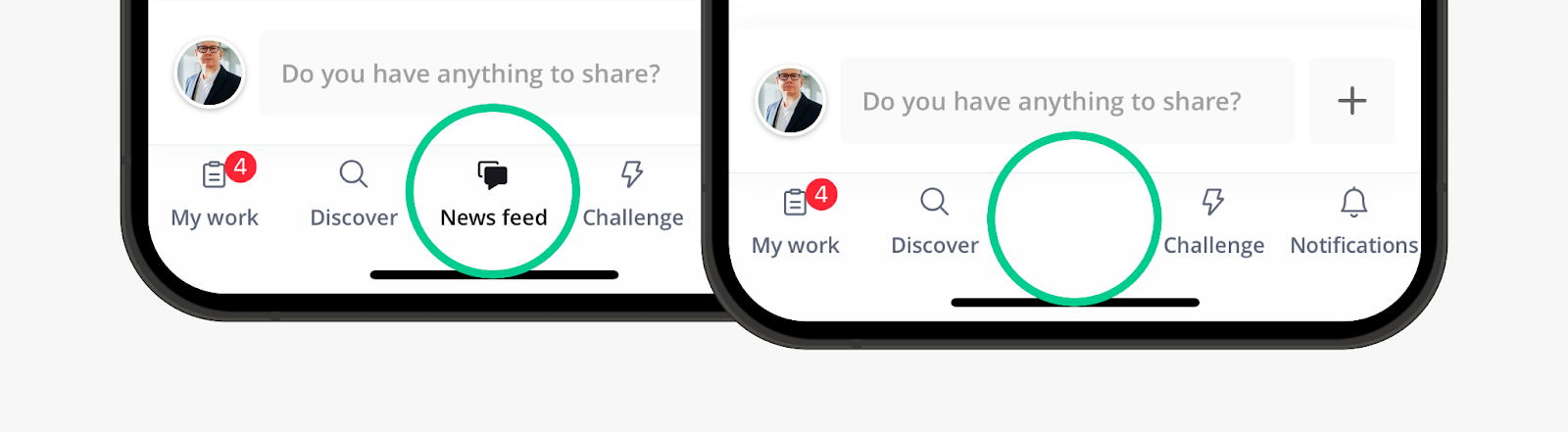
- Brand color palette in hexadecimal format (can be up to 2 colors), to be used for the buttons and also for some text in the splash & login screens.
-
Important to maintain accessibility:
- White (#FFFFFF), Red (#FE0202FF), and other light colors should not be used as a primary color.
- Ensure that your brand color contrasts well with your background color, otherwise, the buttons on the login screen may be hard to see.
Store description
Provide the desired description that will appear in the Stores.
Specifications
- The store description should be no longer than 4000 characters.
- The store description should go beyond just the app name and explain the app’s purpose. Otherwise, it will be rejected by the stores.
If no description is provided, 360Learning will put its standard description, then replace all references to "360Learning" with your organization's name.
Android short description (if applicable)
This is a specific field Android offers.
This short description should convey your app's message and give users a summary of your app’s biggest benefits in 80 characters or fewer (spaces included).
Note: Don't repeat your short description in your full description.
Apple Store tagline (if applicable)
A tagline is a summary of your app that will appear under your app’s name on your App Store product page.
- The Apple Store tagline can’t be longer than 30 characters (spaces included).
- By default, the app’s tagline will be:
Learning Management System. If you’d like to use a custom tagline, please specify it when completing the form.
Privacy policy URL
This information is requested by the stores.
The link to your privacy policy should be a direct URL (not a PDF).
The privacy policy should:
- Hold a reference to the entity (company) named in the store's listing or the app.
- Include a clear labeling as a privacy policy.
- Include a privacy point of contact or a mechanism to submit inquiries.
- Be readable in a standard browser without any plug-ins or special handlers (no PDFs).
- Be available on an active, publicly accessible and non-geofenced URL.
- Be non-editable.
- Fully disclose how you access, collect, use, and share user data.
You are the data controller: you decide why and how personal data is collected and used.
360Learning acts solely as a data processor, handling data strictly on your behalf and per your instructions.
We provide the tools, but you maintain the direct relationship with your users, and your privacy policy governs data collection and use.
Login options
On mobile, we display the same configuration as the one chosen for your platform (that is, login with email/username or login with SSO).
Login with email/username
Here is an example of what it looks like for your custom app:
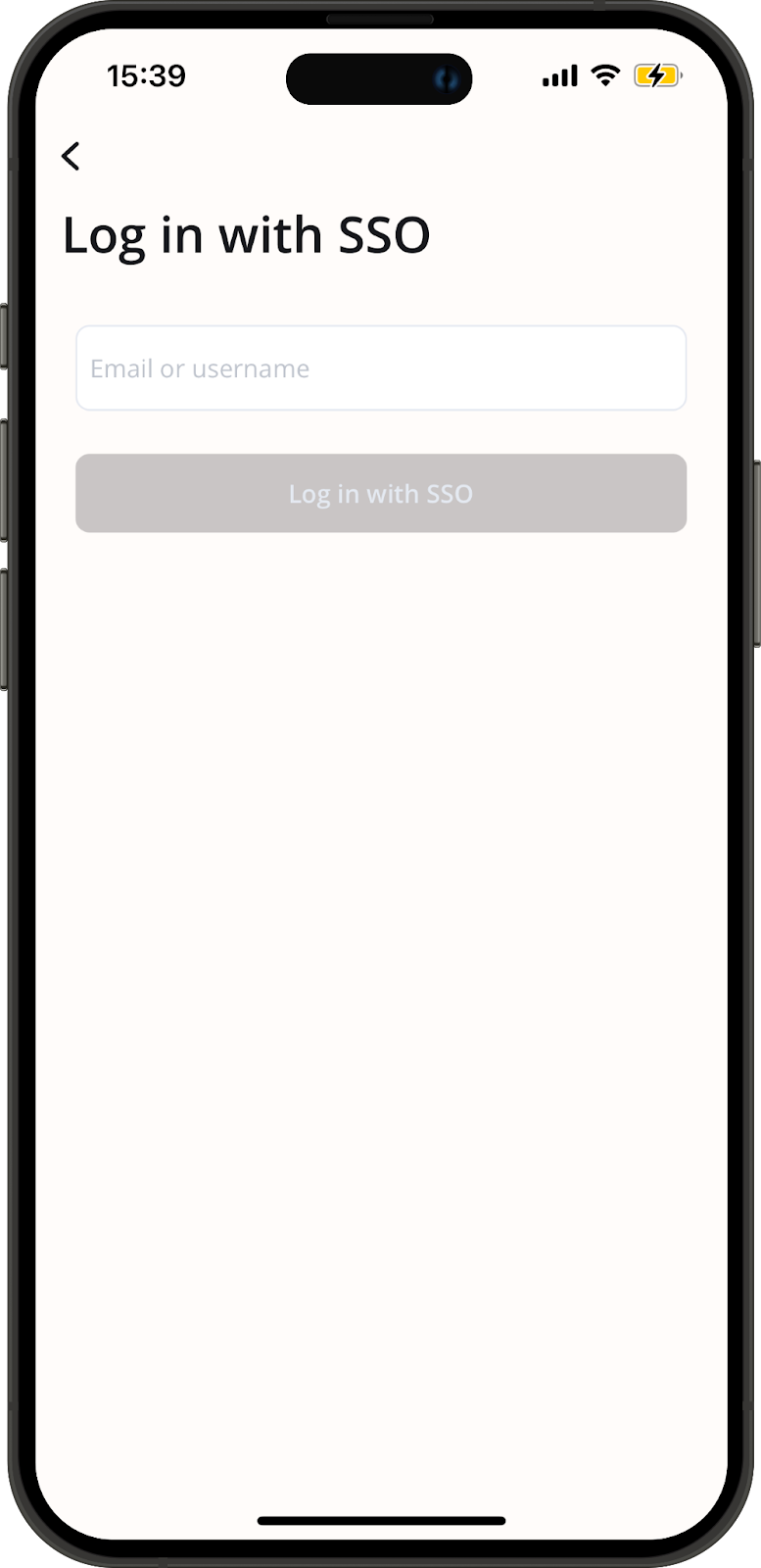
Login with SSO
The 2 options: mixed SSO and forced SSO, will also be applied to your custom app. It is possible to customize your app even further by linking the custom app to a private group with SSO activated:
- This group can be the root group
- This group needs to have SSO activated
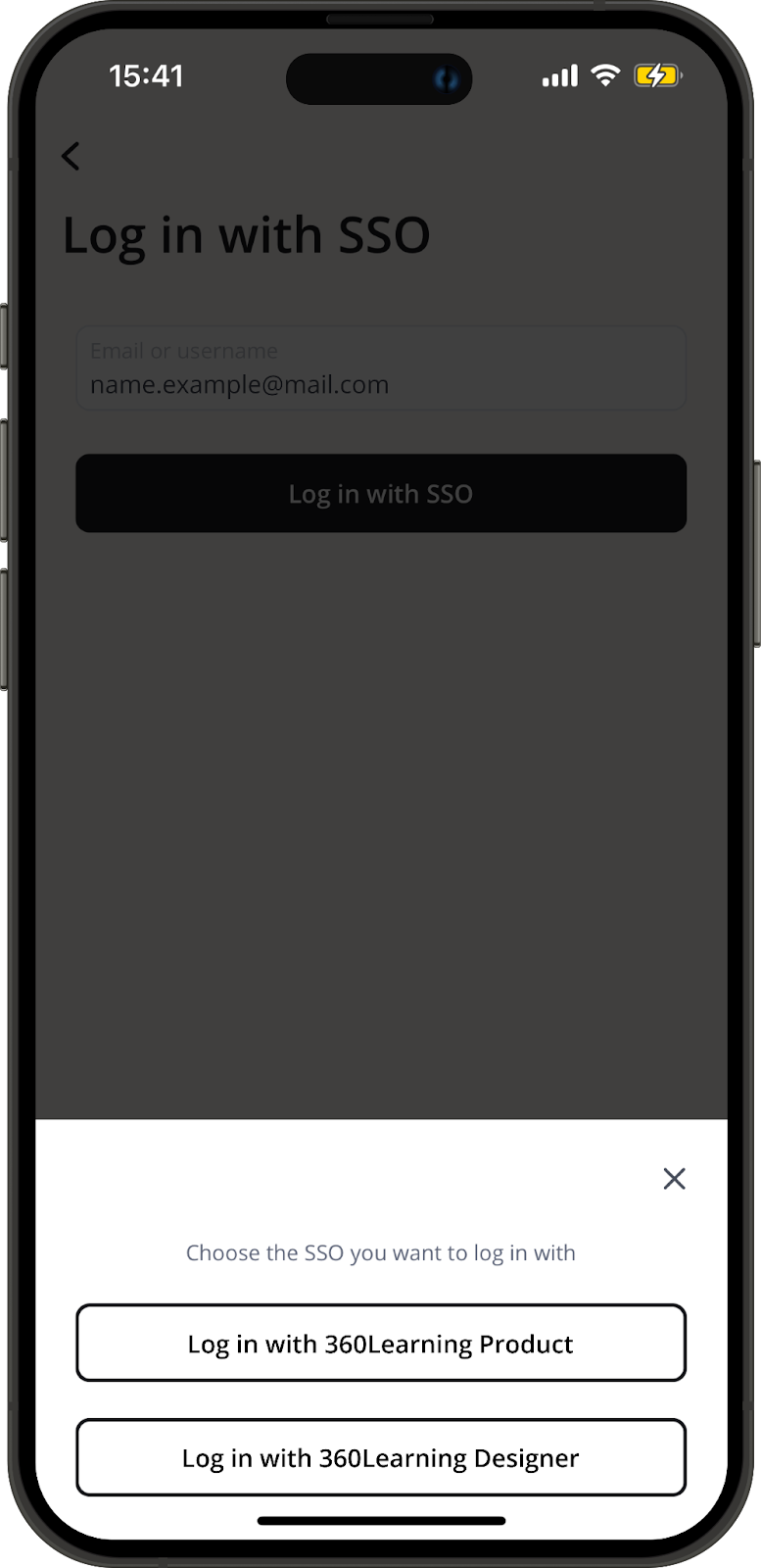
- When linked, the custom app displays the SSO of the private group by default
All we need is the groupID (with SSO activated) that you want to link to the custom app.
Here is an example of a custom app linked to a private group:
To choose a distribution method and follow the setup steps, see Distribute your customized mobile app.